Steps
Go to the KlesiaVerse website and choose Join the free pilot.
Type Your name, Email and a Password of at least 10 characters, then choose Create account.
Open the email we send you and click the link in it. Open it in the same browser you signed up in.
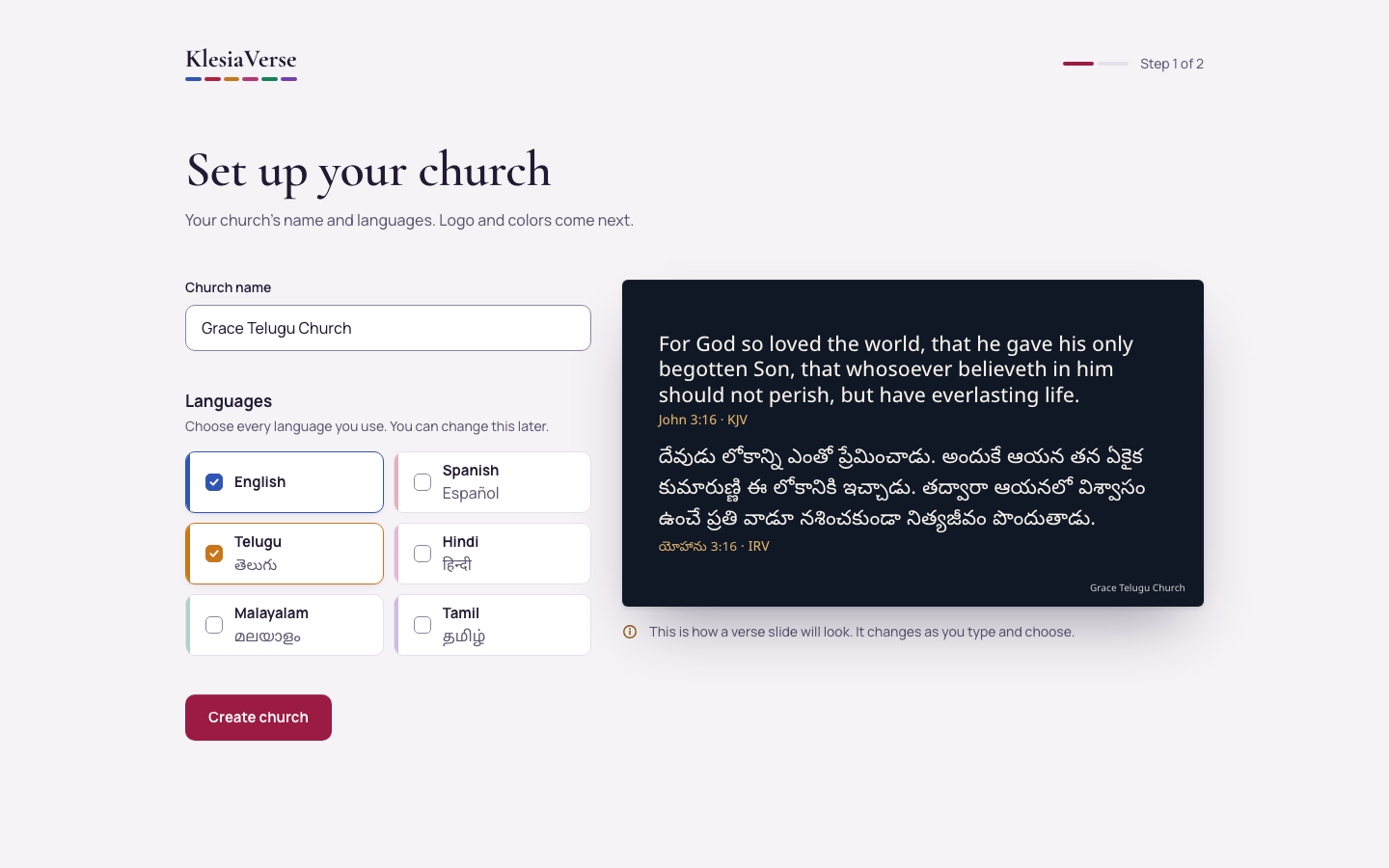
Type your Church name, for example “Grace Telugu Church”.
Under Languages, tick every language your church uses. English is ticked already; untick it if you don’t use it.
Choose Create church. KlesiaVerse takes you to your church’s look next.
Good to know
- The slide beside the form shows how a verse will look in your languages. It changes as you type and choose.
- Slides show up to three languages at once. If you choose more, you pick which three for each service.
- You can change your languages later on the Brand page.
- Forgot your password? Choose Forgot password? on the sign-in page and we’ll email you a link.
Still stuck? Write to hello@khairotech.com and we’ll help.