Steps
Choose Brand in the menu.
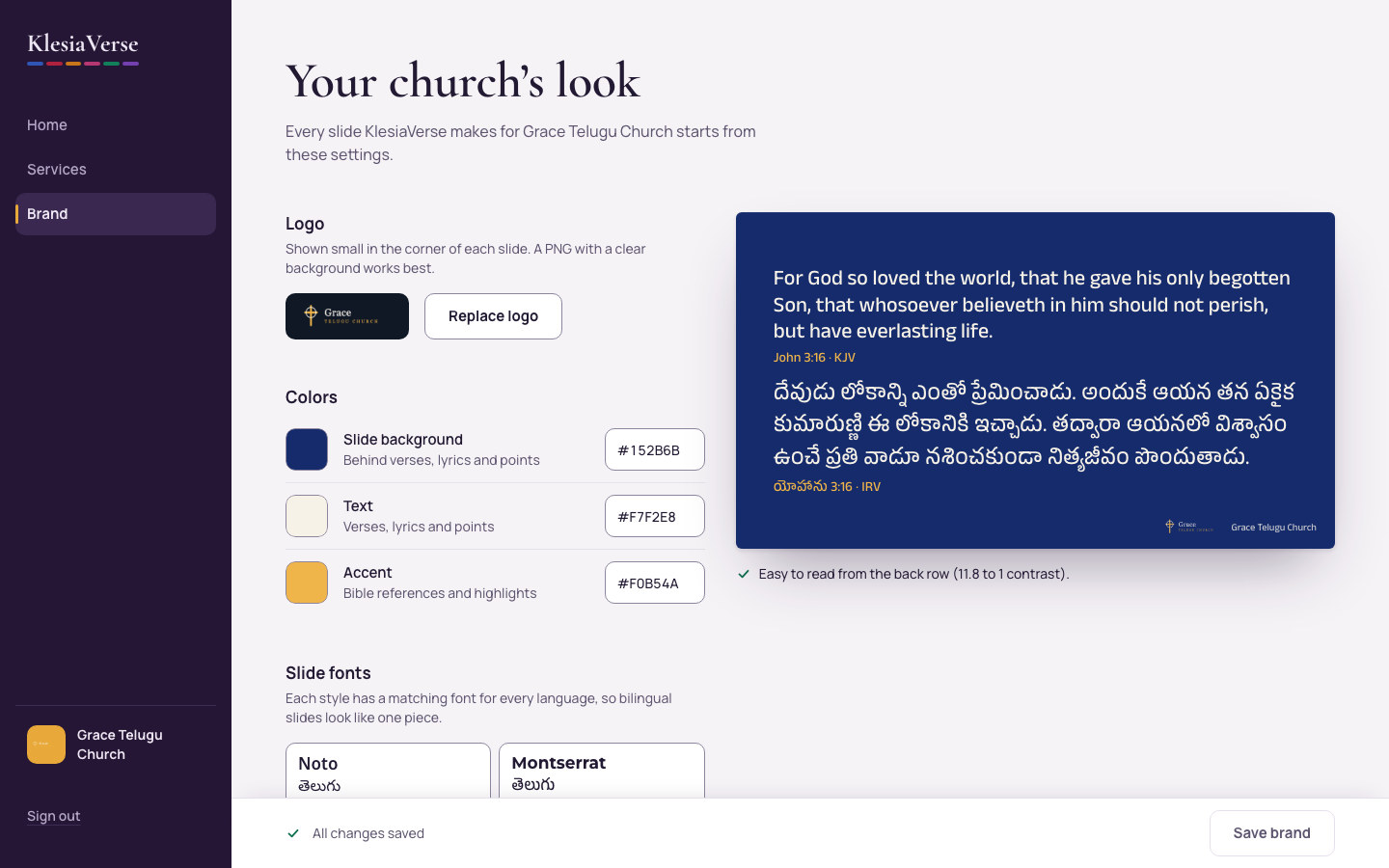
Under Logo, choose Upload logo and pick your logo. A logo file with no background (a transparent PNG) works best. It saves straight away.
Under Colors, set the Slide background, the Text and the Accent (used for Bible references and highlights). Use the color picker, or type a color code.
Under Slide fonts, choose a style. Each one has a matching font for every language, so bilingual slides look like one piece.
Under Title font, choose a font for song and sermon titles and sermon points, or keep it the same as the slide font.
Choose Save brand at the bottom of the screen.
Good to know
- Under the preview, KlesiaVerse tells you if your text is easy to read from the back row. Aim for the green tick.
- Lyrics and verses always use the slide font. The title font is only for titles and sermon points.
- Every font is free to use, and comes with matching Telugu, Hindi, Malayalam and Tamil fonts.
Still stuck? Write to hello@khairotech.com and we’ll help.